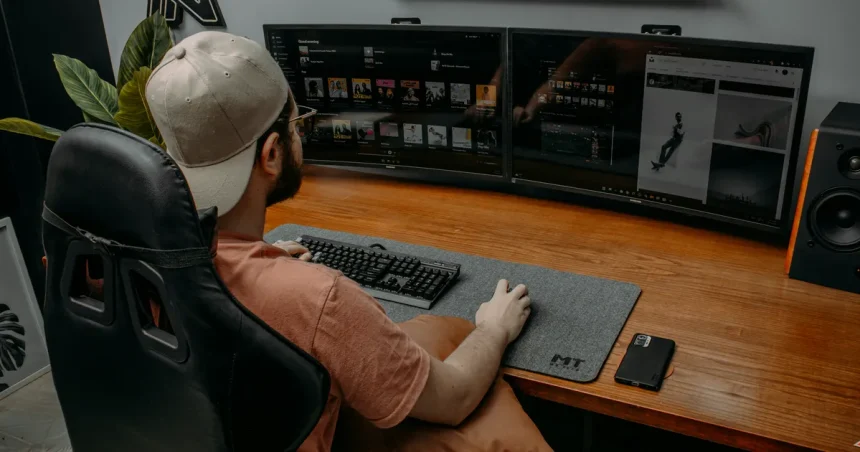
Implementing an essential ergonomic setup for long-term remote work health is no longer a luxury but a fundamental requirement for sustaining professional longevity in 2026. As the lines between corporate offices and home spaces continue to blur, the physical toll of sedentary desk work—manifesting as chronic back pain, repetitive strain injuries, and ocular fatigue—has become an urgent concern for the global workforce. By optimizing your workstation, you transition from a reactive approach to health to a proactive, performance-driven environment. This comprehensive guide details the mechanical and behavioral adjustments necessary to transform your home office into a bastion of comfort and efficiency, ensuring that your musculoskeletal system remains resilient against the cumulative pressures of daily digital output.
Establishing the Neutral Spine Position
The foundation of any ergonomic workspace is the neutral spine position, a posture that aligns your joints to minimize stress on muscles and ligaments. When seated, your feet should rest firmly on the floor or a dedicated footrest, with your knees positioned at approximately a 90-degree angle. Adjust your chair height so your thighs are parallel to the floor, preventing circulation constriction behind the knees. This alignment serves as the anchor for all subsequent equipment adjustments, ensuring that your body operates within its natural range of motion rather than fighting against poorly positioned hardware throughout the workday.
Once your lower body is stabilized, focus on the lumbar region of your back. Most professional office chairs provide adjustable lumbar support, which should fit snugly into the inward curve of your lower spine to maintain its natural shape. If your chair lacks this feature, a rolled towel or a dedicated ergonomic cushion can bridge the gap between your back and the backrest. By maintaining this natural curve, you effectively distribute your body weight evenly across the chair, significantly reducing the risk of disc compression and lower back strain during long, intensive work sessions. For more insights on spinal health, visit the Mayo Clinic website.
Optimizing Monitor Height and Distance
Visual fatigue often stems from improper screen placement, which forces the neck into unnatural postures. Your monitor should be positioned directly in front of you, with the top third of the screen at or slightly below your eye level. This configuration encourages a downward gaze, which is less taxing on the eye muscles and helps prevent the “tech neck” phenomenon that plagues many remote professionals. If you use a laptop, it is imperative to use an external keyboard and mouse, elevating the screen to a height that allows you to maintain a neutral head and neck alignment without hunching forward.
The distance between your eyes and the screen is equally critical for long-term health. Generally, the monitor should be approximately an arm’s length away, roughly 20 to 30 inches from your face. If the text appears too small, increase the font size rather than leaning forward, as leaning compromises your posture and adds unnecessary tension to the upper back. For those utilizing dual-monitor setups, place your primary monitor directly in front and the secondary screen to the side at a slight angle. This setup prevents constant head rotation, which can lead to cervical spine strain over time as you navigate between windows in 2026.
Input Devices and Wrist Alignment
Your keyboard and mouse serve as your primary tools for interaction, and their placement directly influences the health of your wrists and forearms. Keep your keyboard at a height that allows your elbows to remain at a 90-degree angle, with your wrists held in a straight, neutral position rather than bent upward or downward. Avoid resting your wrists on a hard desk edge while typing, as this can compress the carpal tunnel and lead to chronic nerve irritation. Consider using a wrist rest that provides firm support, ensuring that your hands “float” slightly above the keys to promote better blood flow.
An ergonomic mouse or vertical trackball can also alleviate the pronation of the forearm that occurs with standard mice, reducing the risk of tendonitis. By allowing your hand to rest in a “handshake” position, you minimize the twisting of the radius and ulna bones, which is a common source of repetitive strain injuries. Regularly switching hands for mouse usage can also distribute the workload, though this requires a period of adjustment. Always prioritize equipment that allows for a relaxed grip, as excessive tension in the fingers and palms often radiates upward into the shoulders and neck, causing fatigue by the end of the day.
Comparison of Ergonomic Input Hardware
| Device Type | Ergonomic Benefit | Best For |
|---|---|---|
| Split Keyboard | Reduces ulnar deviation | High-volume typists |
| Vertical Mouse | Promotes neutral forearm | Preventing wrist strain |
| Trackball Mouse | Limits repetitive movement | Limited desk space |
| Mechanical Low-Profile | Reduces key travel force | Reducing finger fatigue |
Managing Lighting and Environment
Environmental factors, particularly lighting, play a significant role in your physiological well-being. Excessive glare on your screen forces your eyes to work harder to distinguish text, leading to headaches and blurred vision. Position your desk perpendicular to windows to avoid both front-facing glare and harsh backlighting that creates silhouettes. Using adjustable window blinds or soft, diffused overhead lighting can help maintain a consistent luminance level throughout the day. If you find your eyes straining by mid-afternoon, ensure your screen brightness is adjusted to match the surrounding room light, as a screen that is significantly brighter than the environment will accelerate visual fatigue.
In addition to lighting, consider the thermal and acoustic aspects of your workspace to maintain cognitive clarity. A room that is too warm can lead to lethargy, while excessive noise can trigger the body’s stress response, causing subconscious muscle tension in the shoulders and jaw. Invest in noise-canceling headphones if your environment is noisy, and ensure that your desk area is well-ventilated. By creating a sensory-balanced environment, you reduce the “cognitive load” on your brain, allowing for deeper focus while simultaneously protecting your physical health. These environmental controls are essential for anyone managing a remote career in 2026.
Movement Strategies and Micro-breaks
Even the most perfect ergonomic chair cannot replace the necessity of movement. The human body is designed for motion, not for sustained periods of static sitting. Implement the 20-20-20 rule to combat digital eye strain: every 20 minutes, look at something 20 feet away for 20 seconds. Beyond visual breaks, perform physical “micro-breaks” every hour. Stand up, stretch your chest muscles, and perform gentle neck rolls to release tension that accumulates from concentrated work. These short interruptions reset your postural habits and prevent the “locked-in” feeling that leads to stiffness and reduced range of motion by the end of the work week.
Consider incorporating a sit-stand desk into your workflow to further encourage variability in your posture. The goal is not to stand all day, but to alternate between sitting and standing, which promotes better circulation and engages different muscle groups. When switching to a standing position, ensure your monitor height is adjusted accordingly to maintain the same neutral gaze. For more information on the impact of movement on productivity, consult resources from OSHA regarding workplace safety. Consistency in movement is the ultimate key to preventing the long-term musculoskeletal degradation associated with modern remote professional life.
Integrating Health into Daily Routines
Maintaining a healthy remote work setup requires a mindset shift that treats ergonomic maintenance as a daily ritual. Start each morning by checking your chair height, monitor distance, and input device alignment. As the day progresses, stay mindful of your posture, especially during high-stress periods where you might unconsciously hunch over the keyboard. By externalizing these checks—perhaps via a sticky note on your monitor or an automated reminder on your phone—you build the muscle memory required to maintain a healthy alignment without constant conscious effort. This routine ensures that your home office remains a tool for your success rather than a cause of injury.
Finally, do not underestimate the importance of hydration and nutritional support in keeping your tissues healthy and resilient. Dehydration can lead to muscle cramping and decreased cognitive function, making it harder to maintain good posture. Keep a water bottle within reach and aim for consistent hydration throughout your shift. By combining physical equipment adjustments with mindful behavioral habits, you create a robust framework for long-term health. Remember that your workspace is a reflection of your commitment to yourself; investing time in it today pays dividends in your energy levels and physical comfort for years to come.
Key Takeaways
- Maintain a neutral spine by adjusting chair height and lumbar support.
- Keep the top of your monitor at or slightly below eye level.
- Avoid wrist strain by using neutral-grip keyboards and mice.
- Use the 20-20-20 rule to prevent digital eye fatigue regularly.
- Alternate between sitting and standing to encourage circulation.
- Optimize room lighting to eliminate screen glare and eye strain.
Frequently Asked Questions
What is the ideal chair height for long-term work?
Your chair should be set so that your feet are flat on the floor and your knees are at a 90-degree angle, with your thighs parallel to the ground.
How can I reduce wrist pain while typing?
Keep your wrists in a neutral, straight line with your forearms and avoid resting them on sharp desk edges; consider a vertical mouse to reduce forearm twisting.
Is a standing desk necessary for health?
While not mandatory, a sit-stand desk is highly beneficial for varying your posture, improving circulation, and reducing the risks associated with prolonged sedentary behavior.
How often should I take a break?
You should aim for a brief movement break every 60 minutes and follow the 20-20-20 rule for your eyes every 20 minutes to prevent strain and fatigue.
Does screen brightness affect physical posture?
Yes, if a screen is too dim or causes glare, you may subconsciously lean forward to see better, which compromises your neck and back posture significantly.
Conclusion
Achieving long-term remote work health is a deliberate process that combines high-quality ergonomic equipment with disciplined postural habits. By carefully calibrating your workstation to support your body’s natural alignment and integrating consistent movement into your daily schedule, you effectively mitigate the risks of chronic pain and fatigue. As we look toward the future of work in 2026, those who prioritize their physical well-being through these essential adjustments will undoubtedly sustain higher levels of focus and professional satisfaction. Treat your health as your most valuable asset, and your workspace will serve as the foundation for your continued success.